
We will walk you through the most typical way that our customers use ViewPoint to mark a problem resolved.
- When you log into ViewPoint, you will land on the overview tab which appears as a dashboard.
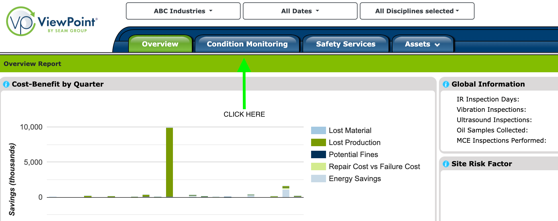
- Please click on the condition monitoring tab.
- This will take you to the main list which contains all the problems.
- From here, feel free to filter or search any of the problems in the system.
- Open problems are denoted with an O icon in the status column of the list.
- Clicking on a row will allow enabling three actions. Click on problem details.
- Double-clicking on the row will also open up the “problem details” view.
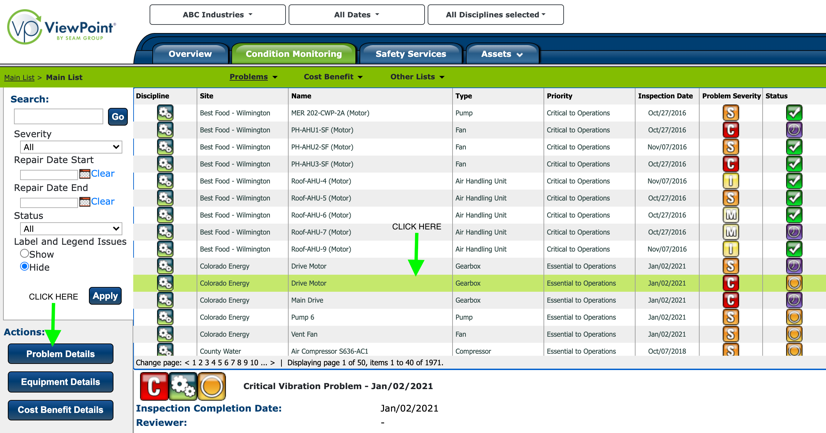
- Double-clicking on the row will also open up the “problem details” view.
- There will now be a lot more information about the problem presented on the screen.
- On the lower right-hand side of the screen, you will see the ability to Edit Repair.
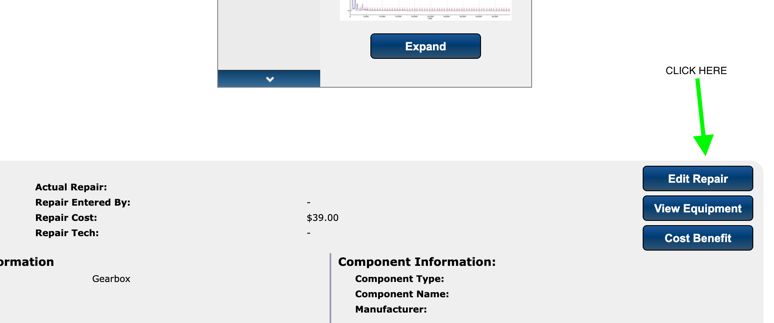
- On the next modal to fill in the details about the repair.
- Click save.
- Confirm the O icon has changed to a check mark icon.
If you need further assistance, please email us at vphelp@seamgroup.com
Comments
0 comments
Please sign in to leave a comment.