
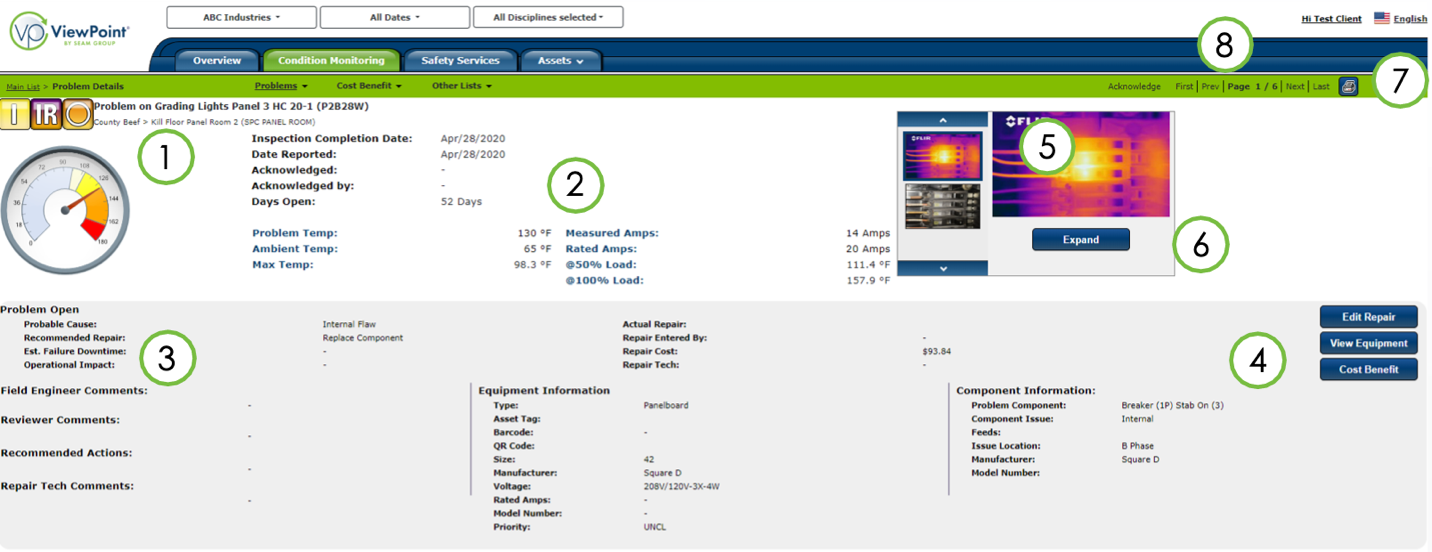
The problem details page displays all information for the selected problem, including:
- Problem severity
- Discipline
- Repair status
- Site information (1)
The top area displays the problem information associated with the equipment (2). The bottom area displays repair and equipment information (3). Clicking on the buttons (4) will allow you to edit the repair information, view equipment details, and view cost-benefit details.
With the image viewer (5), you can examine all visual and infrared images associated with the problem. Click the expand button (6) to enlarge images for greater detail.
Click on the printer icon to print the problem page to save the problem as a PDF (7). Use the page control (8) to navigate to the next or previous problem, or to go to the first or last item in the problems list.
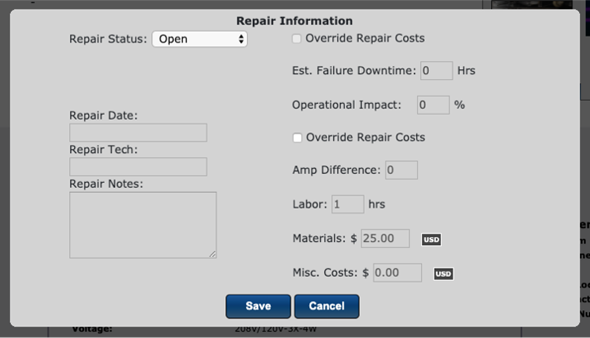
Repair details entry
The repair information dialog will appear over the current page when the edit repair button is clicked. You can enter information including repair status, date, and costs involved for the selected problem.
See details on the image viewer
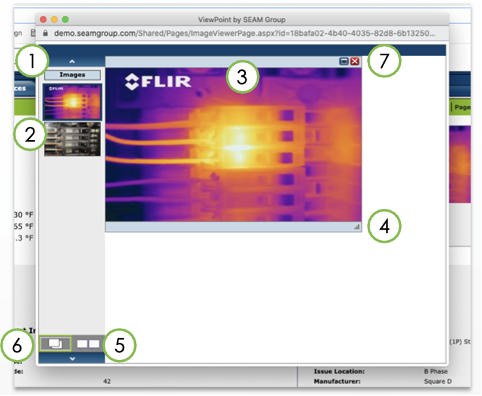
The image viewer allows you to view and compare all images related to a problem or piece of equipment.
- Scroll through the thumbnails using the arrow buttons (1)
- Select an image to view by clicking on its thumbnail. If an image is selected, its thumbnail will be highlighted (2)
- Move images by clicking on and dragging the image’s title bar (3)
- Resize images by clicking on and dragging the window resize handle (4)
- View selected images side-by-side by clicking the tile images button (5)
- Cascade selected images by clicking the cascade images button (6)
- Maximize, minimize, or close the image by clicking the respective buttons (7)
If you need further assistance, please email us at vphelp@seamgroup.com
Comments
0 comments
Please sign in to leave a comment.