
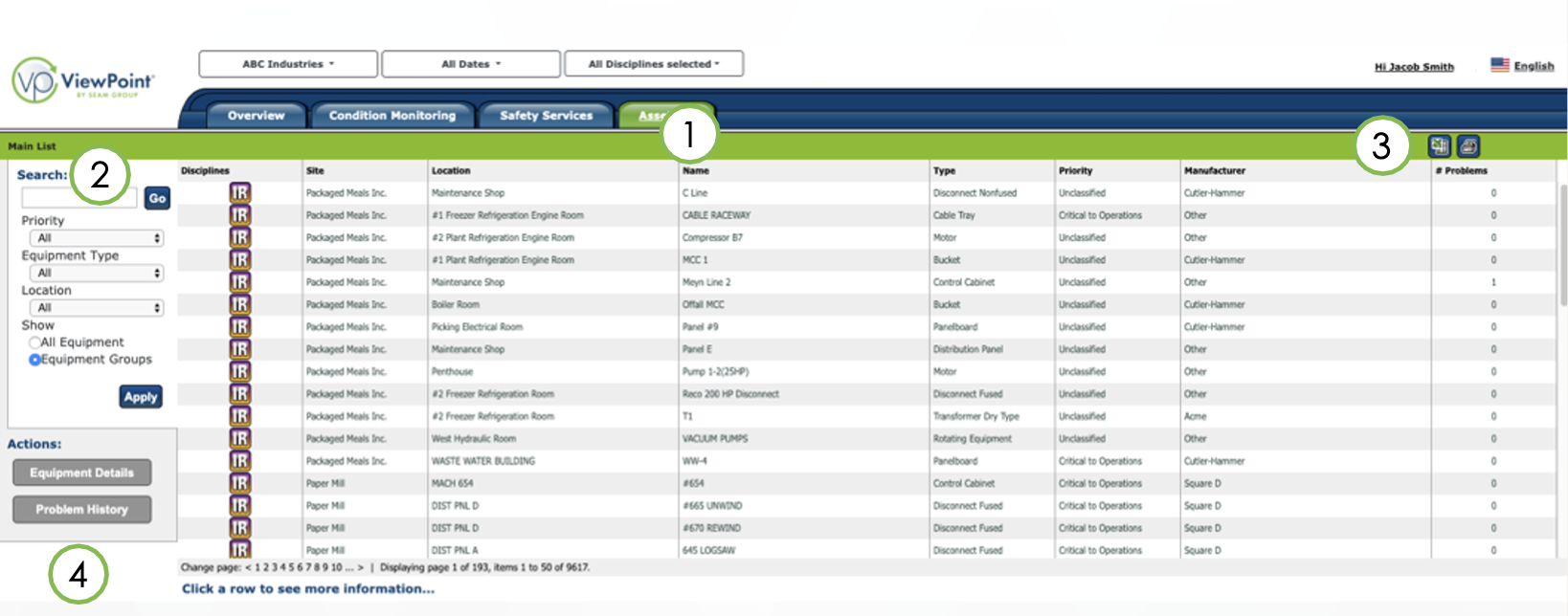
The asset list displays all assets for the selected region/site, date range, and discipline(s).
- Click on the column headers (1) to sort.
- Search the list (2) for a specific item, type, or location.
- You can also export the list to an Excel spreadsheet or print to PDF (3).
- Select an asset row and click the Equipment Details button (4) to view asset details.
- Click the Problem History button to view problems associated with the asset.
The asset details page
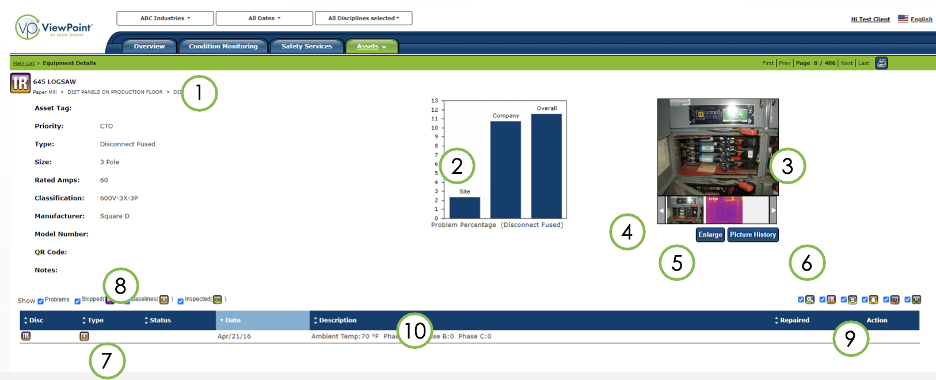
On the asset details page you can access asset information (1) and inspection history (7).
- The Problem Percentage chart (2) shows the frequency of problem(s) for the selected equipment type. The value displayed is the number of inspections where at least one problem was found divided by the number of times that asset was inspected.
- With the image viewer (3), you can examine all visual and infrared images associated with the asset. The right and left arrow buttons (4) allow you to browse and select images.
- Click the enlarge button (5) to enlarge the images.
- Click on picture history to view images from current and previous inspections (6).
- The bottom area displays inspection records for the asset (7). You can show/hide inspection records by type (8) or discipline (9), and sort the records using the column headers (10).
If you need further assistance, please email us at vphelp@seamgroup.com
Comments
0 comments
Please sign in to leave a comment.